Loadline: Sprint Capacity for Jira
Loadline shows, for every person in a sprint, how much work is planned against how much they can do, with a clear status for each person and the team. Every number opens the issues behind it, and you can reassign, re-estimate or move issues from the same screen.
Setup
There is nothing to configure. Install Loadline from the Atlassian Marketplace and open it from a board. On first open it reads how the board estimates work, learns each person's capacity from their closed sprints, and shows numbers straight away.
Loadline works on boards that run sprints:
| Board | Supported |
|---|---|
| Company-managed Scrum board | Yes |
| Team-managed board with sprints turned on | Yes |
| Team-managed board without sprints | No |
| Kanban board | No |
Optional steps that make the numbers better:
- Fill in the Jira Team field on issues, or set a role per person in Loadline, to group people by role.
- Add days off for the sprint, so capacity drops for people who are away.
- Set a capacity override for anyone whose history doesn't reflect what they can do now.
Where to open it
| Where | What opens |
|---|---|
| Backlog → ••• → Loadline | The next sprint, ready for planning |
| A sprint's ••• menu in the backlog → Check capacity | That sprint |
| Board → ••• → Loadline | The active sprint |
| Project sidebar → Loadline | Pick a board once; Loadline remembers your choice. Use Change board to switch. |
Use the sprint picker to switch between the active sprint, future sprints and the last three closed sprints.
Reading the capacity view
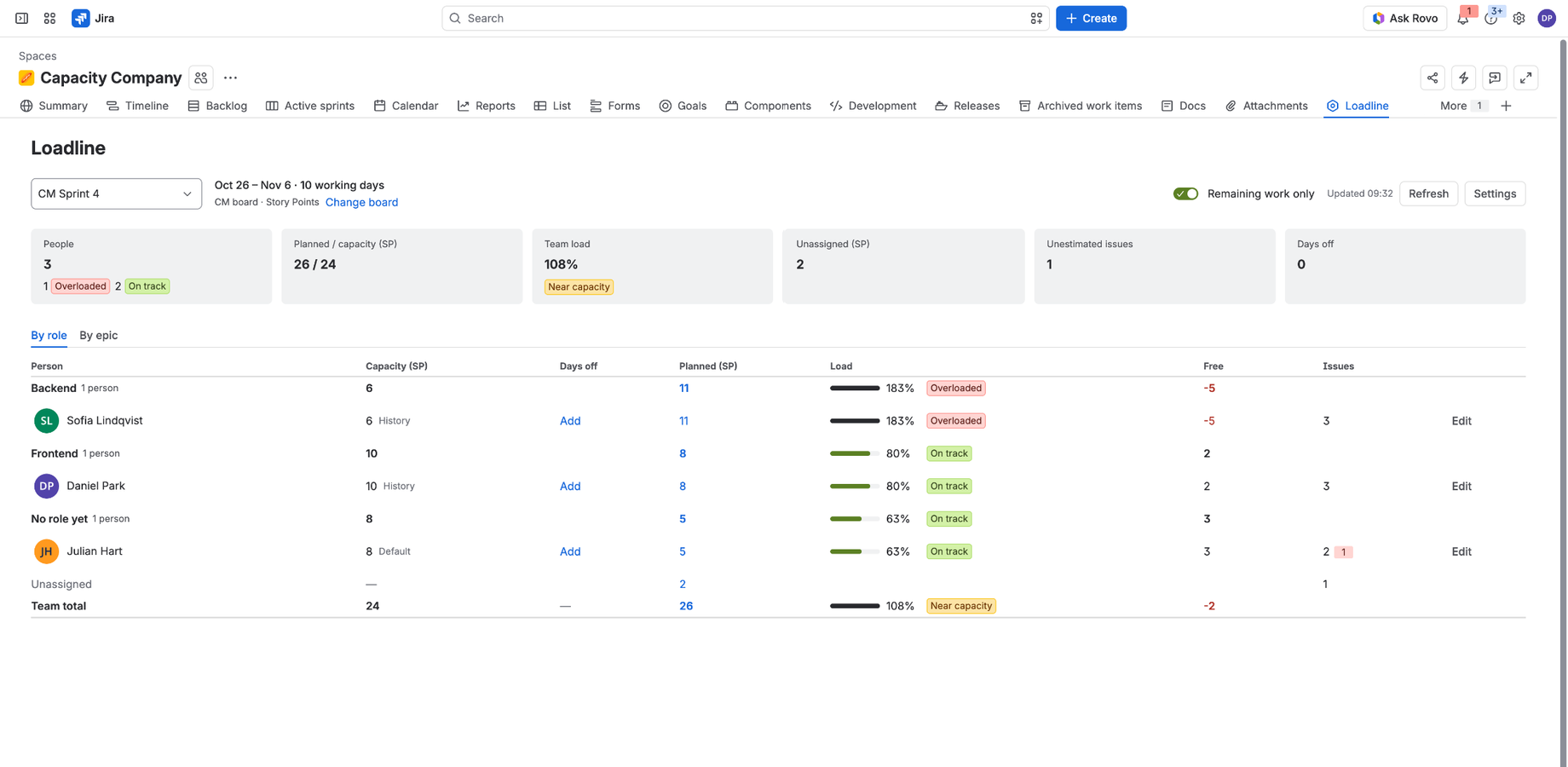
The header shows the sprint dates and working days, the board and its estimation unit. The summary strip shows the number of people and their statuses, planned work against capacity, team load, unassigned work, issues without an estimate and the total days off in the sprint.
| Column | Meaning |
|---|---|
| Capacity | How much the person can do in this sprint, after days off. The small label shows where it comes from: History, Default or Override. Hover for the details. |
| Days off | Days off in this sprint. Click to add or change. |
| Planned | Work in the sprint that counts for this person. Click to see the issues behind it. |
| Load | Planned ÷ capacity, with a status. |
| Free | Capacity minus planned. Negative in red. |
| Issues | Number of issues, with a red badge for those without an estimate. |
Statuses, with the default thresholds (you can change them in Settings):
| Status | Load |
|---|---|
| Has room | below 60% |
| On track | 60% to 90% |
| Near capacity | 90% to 110% |
| Overloaded | above 110% |
| No capacity | capacity is 0, for example the person is off the whole sprint |
By role / By epic. By role groups people under their role, with a subtotal per role, then No role yet, the Unassigned row and the Team total. By epic shows planned work per epic and how it is split across people. Both views add up to the same team total.
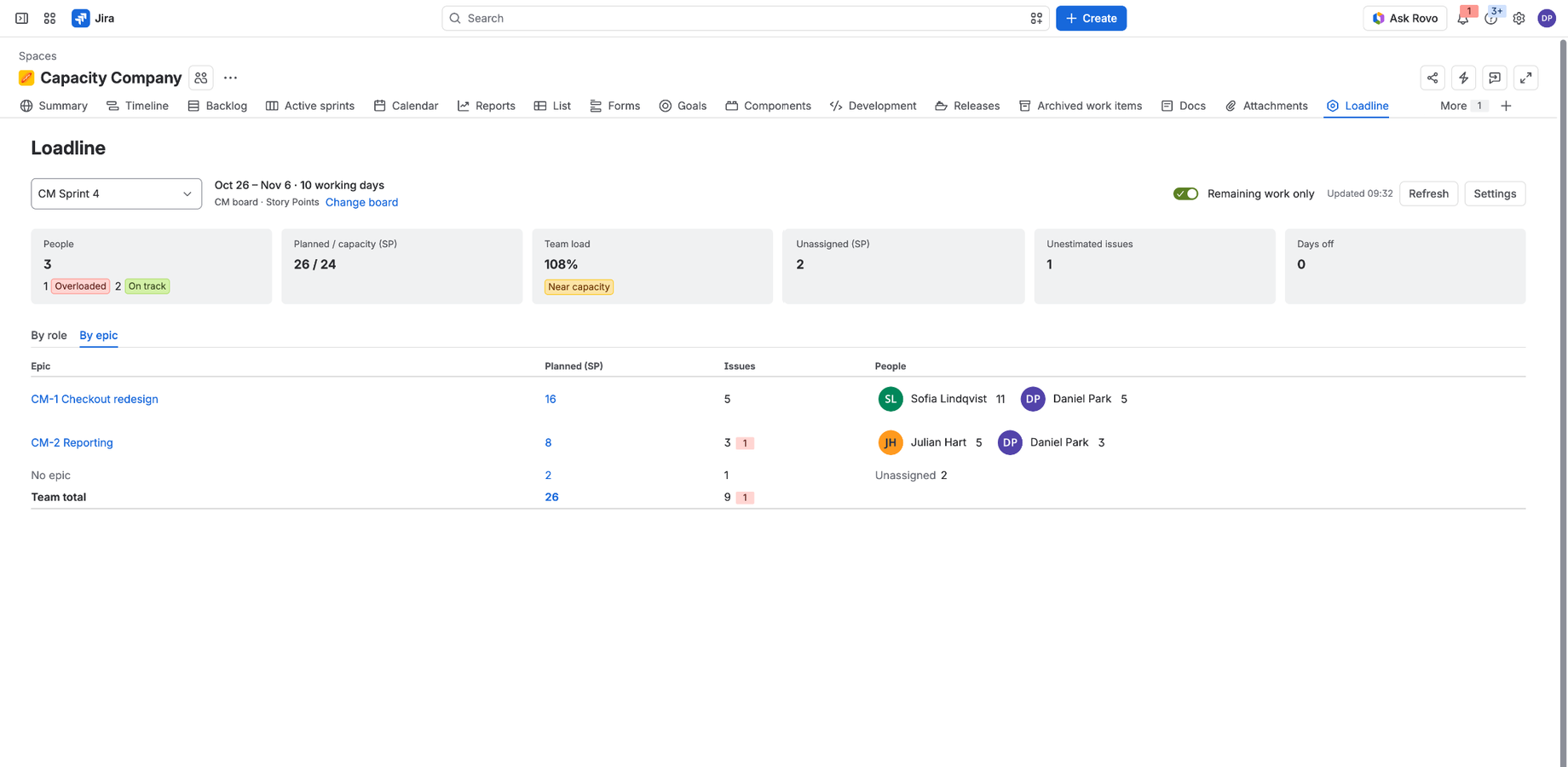
Remaining work only. When on, done issues are left out and hours use the remaining estimate. It is on by default for the active sprint and off for future sprints.
Loadline reads Jira live each time you open it. Use Refresh after changes made elsewhere in Jira.
How the numbers are calculated
Estimation unit
Loadline uses the board's own estimation setting (Board settings → Estimation):
- A story point field (Story Points, Story point estimate or another number field) → story points.
- Original time estimate → hours.
- Issue count or no estimation → issue count.
You can choose a different unit or story point field in Settings. Epics are never counted as work.
Planned work and subtasks
- Story points. A story's points are the size of the whole story. Subtasks with an estimate count for their own assignee, and the story's assignee gets what's left (the remainder). Example: a 5-point story with a 3-point subtask assigned to someone else counts 2 for the story's assignee and 3 for the subtask's assignee. Nothing is counted twice. If the subtasks add up to more than the story, the story counts 0 and is marked Subtasks exceed parent. If no subtask has an estimate, the story counts in full.
- Hours. Each issue and subtask counts its own original estimate, the same way Jira's Σ Original Estimate adds them up.
- Issue count. Each issue and each subtask counts 1.
Issues without an assignee go to the Unassigned row. Issues without an estimate count 0 and show up in the unestimated badge, so nothing is hidden.
Capacity
Each person's capacity comes from the first of these that applies:
- Override: a number set in Loadline for that person. It stays until you clear it.
- History: the median of what the person completed in their last closed sprints (5 by default, 3–10 in Settings), counting only sprints where they had work. At least 2 such sprints are needed. Each sprint is converted to work per working day, so short and long sprints compare fairly, then multiplied by the working days of the sprint you are planning.
- Default: 8 story points or 5 issues per sprint, or, in hours, 6 hours per day × working days. You can change these in Settings.
An issue counts as completed in a sprint if it reached a done status before the sprint was closed. Completed work is credited to the issue's current assignee.
Working days and days off
Working days are Monday to Friday between the sprint's start and end dates. If a future sprint has no dates yet, Loadline assumes the typical length of recent sprints and says so. Days off reduce capacity in proportion:
capacity = base × (working days − days off) ÷ working days
Example: 13 points of history capacity, 2 days off in a 10-day sprint → 13 × 8 ÷ 10 = 10.4.
Roles and people
A person's role on a board comes from:
- The role set in Loadline (Edit on the person's row), if any.
- Otherwise the Jira Team field: the team that appears most often on their issues in this and recent sprints.
- Otherwise they are listed under No role yet.
Roles only group people; capacity is always per person. The table lists everyone assigned in this sprint or recent sprints, plus anyone with settings on this board, even with nothing planned, because that is where work can move.
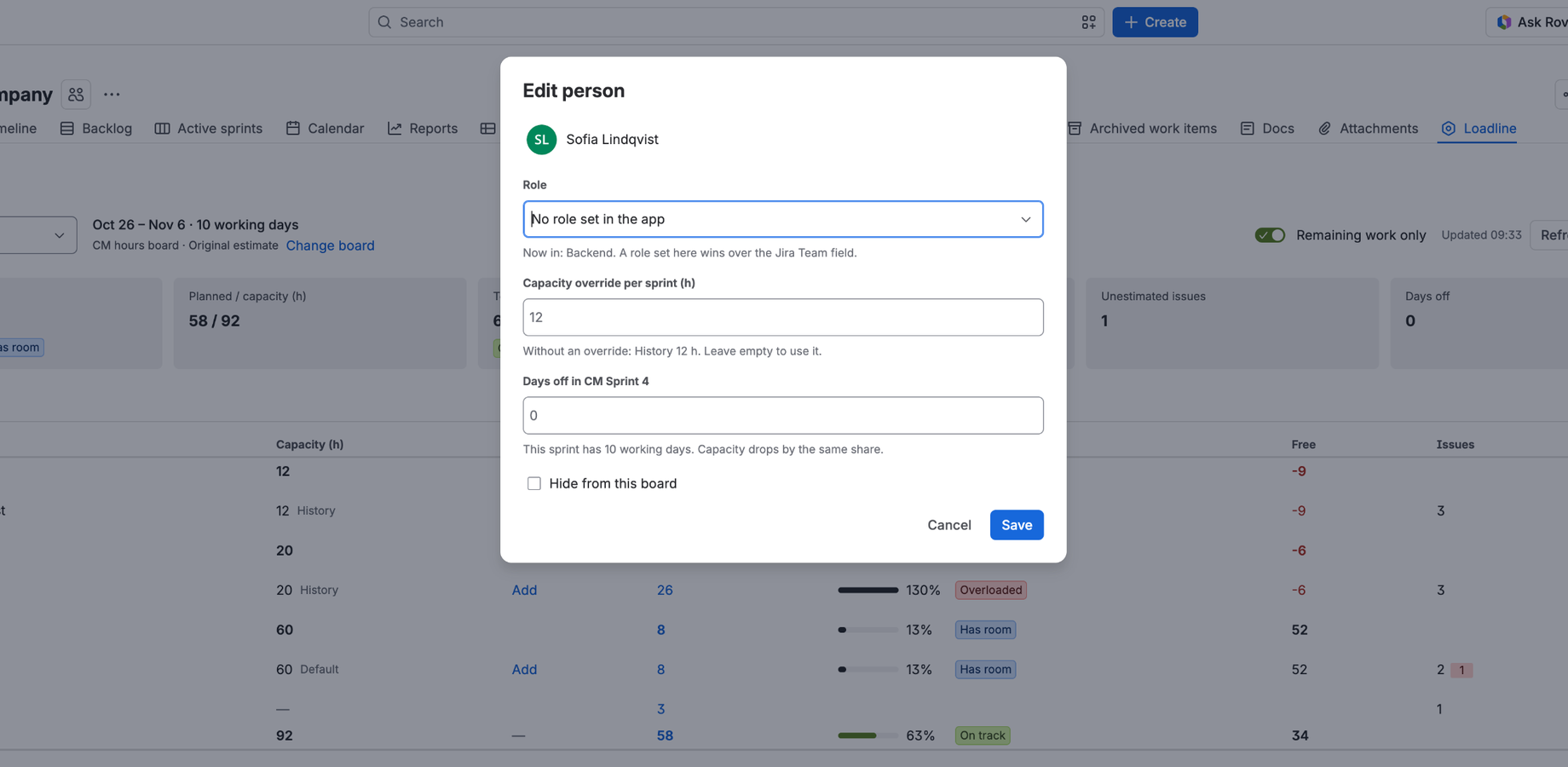
Edit on a person's row lets you set:
- Role: pick one or create a new one.
- Capacity override per sprint: leave empty to use history or default. Clear override removes it.
- Days off in this sprint, in steps of 0.5.
- Hide from this board: for people who left the team. Hidden people can be shown again from the table.
Rebalancing: reassign, move, estimate
Click any planned number (a person, a role, Unassigned or the team total) to see the issues behind it. Each row shows the issue's epic, status, assignee and how it counts: Own, Subtask of …, Remainder of … or Count. Subtasks are listed under their parent. The total always equals the number you clicked.
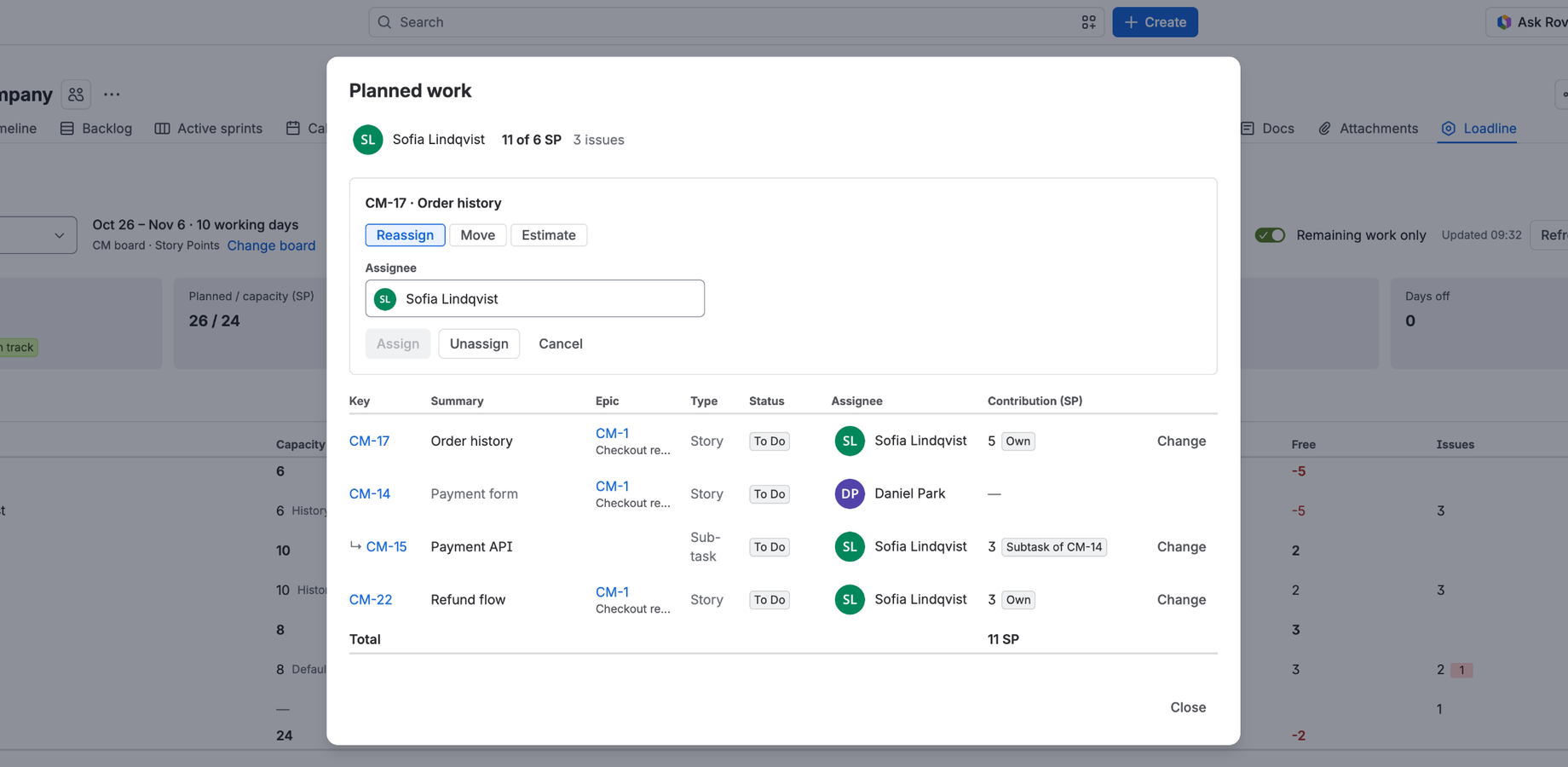
Click Change on a row to:
- Reassign the issue to someone else, or unassign it.
- Move it to another active or future sprint, or to the backlog. Subtasks move with their parent.
- Estimate: change story points, or original estimate in hours (remaining estimate when Remaining work only is on).
Each change is a normal Jira edit made as you, so your Jira permissions apply and it shows in the issue's history. The numbers update in place, and a message shows the new load with an Undo button. Click an issue key to open it in Jira's own issue view; changes you make there are picked up when you close it.
If an estimate can't be saved because the field isn't on the issue's edit screen, change it in the issue view or ask a Jira admin to add the field to the screen.
Settings
Settings are per board. Open them with Settings in the header.
| Setting | Default |
|---|---|
| Estimation: Auto (from board), Story points, Hours or Issue count, plus the story point field | Auto |
| Default story points per sprint | 8 |
| Default issues per sprint | 5 |
| Hours per day (hours mode) | 6 |
| History window (closed sprints) | 5, from 3 to 10 |
| Load thresholds: has room below / near capacity from / overloaded above | 60 / 90 / 110% |
| Roles: rename or delete. People in a deleted role move to No role yet. | none |
| Reset all capacity overrides on this board. Roles and days off stay. | — |
Overrides are kept per unit, so switching the unit and back restores them.
Permissions
- Anyone who can browse the project can open Loadline. They see only the issues Jira lets them see.
- Changing Loadline data (settings, roles, overrides, days off, hidden people) needs the Manage sprints permission in the board's project. People without it don't see the edit controls.
- Reassigning, moving and re-estimating issues follow your normal Jira permissions.
FAQ
Why does someone show Default instead of History?
History needs at least 2 closed sprints in the history window where the person had work. New team members use the default until then, or you can set an override.
Why is a story's number smaller than its story points?
Its subtasks have their own estimates, so part of the story's points counts for the people doing the subtasks. Open the drill-down to see the Remainder rule on that row.
The numbers don't match Jira's sprint report.
Check Remaining work only: with it on, done issues are left out. Also check the unit in the header; Loadline uses the board's estimation field unless Settings say otherwise.
It says "No estimates found in this sprint."
The board uses story points, but no issue in the sprint has any. Add estimates, or use the Use issue count / Use hours buttons in the message (or Settings) to switch the unit.
Who counts as done in history if an issue was reassigned?
Completed work is credited to the issue's current assignee.
Does it work with Kanban boards?
No. Loadline plans sprints, so it needs a Scrum board or a team-managed board with sprints turned on.
Where is my data stored?
Loadline runs entirely on Atlassian Forge. It stores only its settings and Atlassian account IDs (roles, overrides, days off) in Forge storage on your site, and never stores issue content. No data leaves Atlassian. See the privacy policy.
It says the license is inactive.
Ask your Jira admin to renew Loadline in Apps → Manage apps.
How do I get help?
Email support@arqviax.com. See Support for what to include.